
DreamDoc Garmin Connect IQ Guide
ReactionTime
Brain Speed & Reaction Time
A Garmin watch test for alertness, focus and reaction speed. The simple rule is: wait during red, tap immediately when green appears, and do not guess.
The one rule that matters
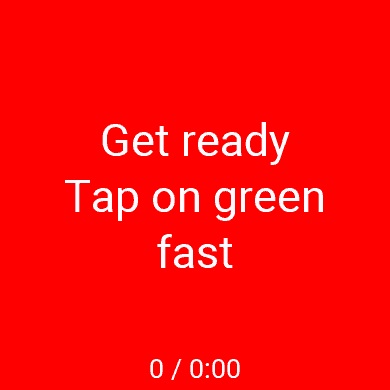
ReactionTime is a short PVT-B style attention test. The watch shows a waiting screen first. You must not tap during red. When the signal turns green, tap the screen as fast as you can.
How the test works
The app repeats many short trials. Each trial has a random waiting time, then a green signal. The random wait is deliberate: it prevents you from learning a rhythm and forces real attention.
| Phase | What you see | What you must do | What is measured |
|---|---|---|---|
| 1. Red / waiting | “Get ready – Tap on green fast” | Do nothing. Keep your finger ready but do not tap. | A tap here is a false start / anticipation. |
| 2. Random delay | The screen stays in the waiting state for roughly 2-10 seconds. | Stay focused. Do not count seconds or guess the timing. | Sustained attention while waiting. |
| 3. Green signal | The target changes to green. | Tap the screen as fast as you can. | Your reaction time in milliseconds. |
| 4. Next trial | The app briefly records the response and starts the next wait. | Reset mentally. Each trial is independent. | Consistency across the full test. |
How to do a clean test
-
1
Choose the duration. Use Short Test (3 min) for a daily quick check. Use Long Test (10 min) when you want a stronger signal or when you compare days after bad sleep, travel, heavy training, illness or stress.
-
2
Sit still and remove distractions. Do not walk, talk, read, drive, watch TV or use the phone. The test is about attention, so distractions directly change the result.
-
3
Prepare your finger. Put your finger close to the screen. Keep it ready, but do not touch until green appears.
-
4
Wait through red. Red means no action. A premature tap is not “extra fast”; it is a false start and is counted as bad response control.
-
5
Tap on green immediately. The result is not only whether you tapped, but how quickly you tapped after the green signal. Slow taps and missed taps become lapses.
-
6
Keep going consistently. Do not relax after a few good trials. The test evaluates the full distribution, so late mistakes at the end still matter.
What counts as good or bad
DreamDoc evaluates the raw trial series. The important point: fast is good only when it is real. Guessing before the green signal is bad, even if the tap looks fast.
| Signal | Meaning | How to read it |
|---|---|---|
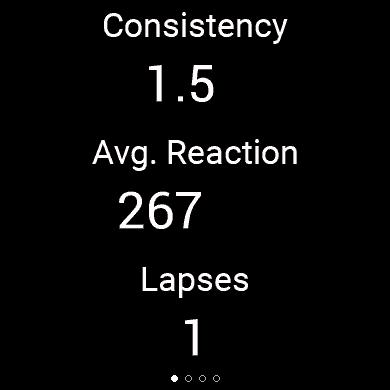
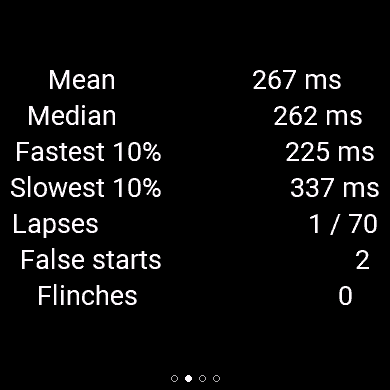
| Average reaction | Mean reaction time in milliseconds. | Lower is faster, but only useful together with lapses and false starts. |
| Consistency | Slowest 10% divided by fastest 10%. | Close to 1.0 means steady attention. A high number means unstable performance. |
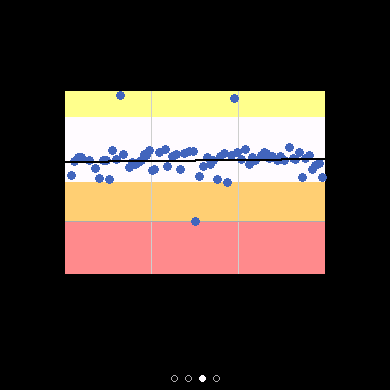
| Distribution | The scatter plot of all taps. | A tight band is good. A wide cloud, isolated slow dots or many late points show attention breaks. |
| Lapses | Very slow reactions / timeout window, around above 500 ms. | One lapse can happen. Several lapses are a strong sign of reduced vigilance. |
| False starts | Taps before the green signal, or implausibly early responses. | Counts against the test because you anticipated instead of reacting. |
What it means for attention
Good attention pattern
- You wait correctly during red.
- You tap quickly once green appears.
- Your reaction times stay close together.
- There are no or almost no lapses.
- False starts are zero or very rare.
Reduced attention pattern
- Average reaction time is slower than expected.
- Some responses are much slower than the rest.
- Lapses appear, especially late in the test.
- False starts show impatience or poor response control.
- The scatter plot spreads out instead of forming a compact band.
In simple terms: the test checks whether your brain stays ready, waits for the correct signal, and responds quickly without losing control. It can be useful in the morning, before demanding work, after poor sleep, after travel, during illness/recovery, or after heavy training.
Why it may show bad sleep or recovery context
The ReactionTime score is based on the test trials. DreamDoc then looks at Garmin context to explain what may be relevant today. Sleep context can appear when Garmin has enough data around your main sleep and wake time.
DreamDoc may flag sleep context when
- Last night’s sleep duration was short compared with your usual pattern.
- Sleep debt has built up over the last 3 or 7 nights.
- Overnight recovery looked weak: higher sleeping heart rate, higher stress, lower HRV or unusual respiration.
- The test was done soon after waking or later in the day, and the timeline is clear enough to interpret.
What “bad sleep” does not mean
- It is not a diagnosis.
- It does not automatically cause the score.
- It does not overwrite the reaction-time result.
- It means wearable data gives a plausible context for reduced alertness today.
How to use it in daily life
Morning check
Run the 3-minute test after waking. Compare with sleep and recovery context in DreamDoc.
Before high-focus work
Use it before driving, long calls, surgery/clinical work, exams or demanding analysis. It is an attention readiness signal, not a permission system.
After interventions
Compare after a nap, breathing session, caffeine, workout recovery or travel. Keep conditions similar so the trend is meaningful.
Why connecting DreamDoc is the benefit
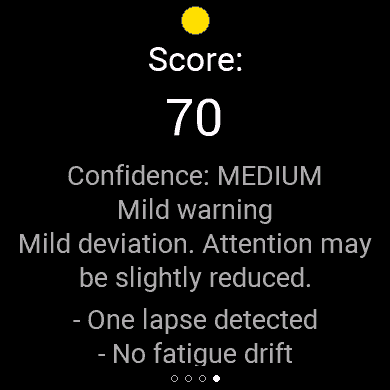
On the watch, you mainly see the current result. With DreamDoc connected, every completed test uploads as a PVT-B record. DreamDoc can then recompute the important metrics from the raw reaction-time series, build clearer reports, and show history over time.
The added value is the combination: objective test performance first, then Garmin sleep/stress/recovery context, then your personal history. See also Know Your Day and the science of personal trajectories. That is much better than only seeing a single number on the watch.